How to preserve a Telegram channel message in an offline capsule
A step-by-step guide to capturing a public Telegram channel post as a signed, tamper-evident web archive, and sharing a capsule anyone can verify.
To preserve a Telegram message with proof, copy its link in the app, open it in a fresh browser and capture the page with evidx. You get a signed web archive that records what the post said, as well as when you captured it, and proofs that nobody has changed it since.
Telegram is a widely-popular social messaging service, which focuses on supporting topical channels which thousands of users follow and get their news from. War reporting, local media, extremist networks, official statements – you name it.
Content in channels is however subject to editing and deletion from admins and moderators. So here is how to preserve a single Telegram message, step by step, so that you can stand behind it later.
I'll use a real post from The Kyiv Independent's public channel, captured with evidx.
Step 1: Find the message and copy its link
Open the channel in the Telegram app, right-click the message (or long-press / force-press on mobile) and choose Copy Message Link.
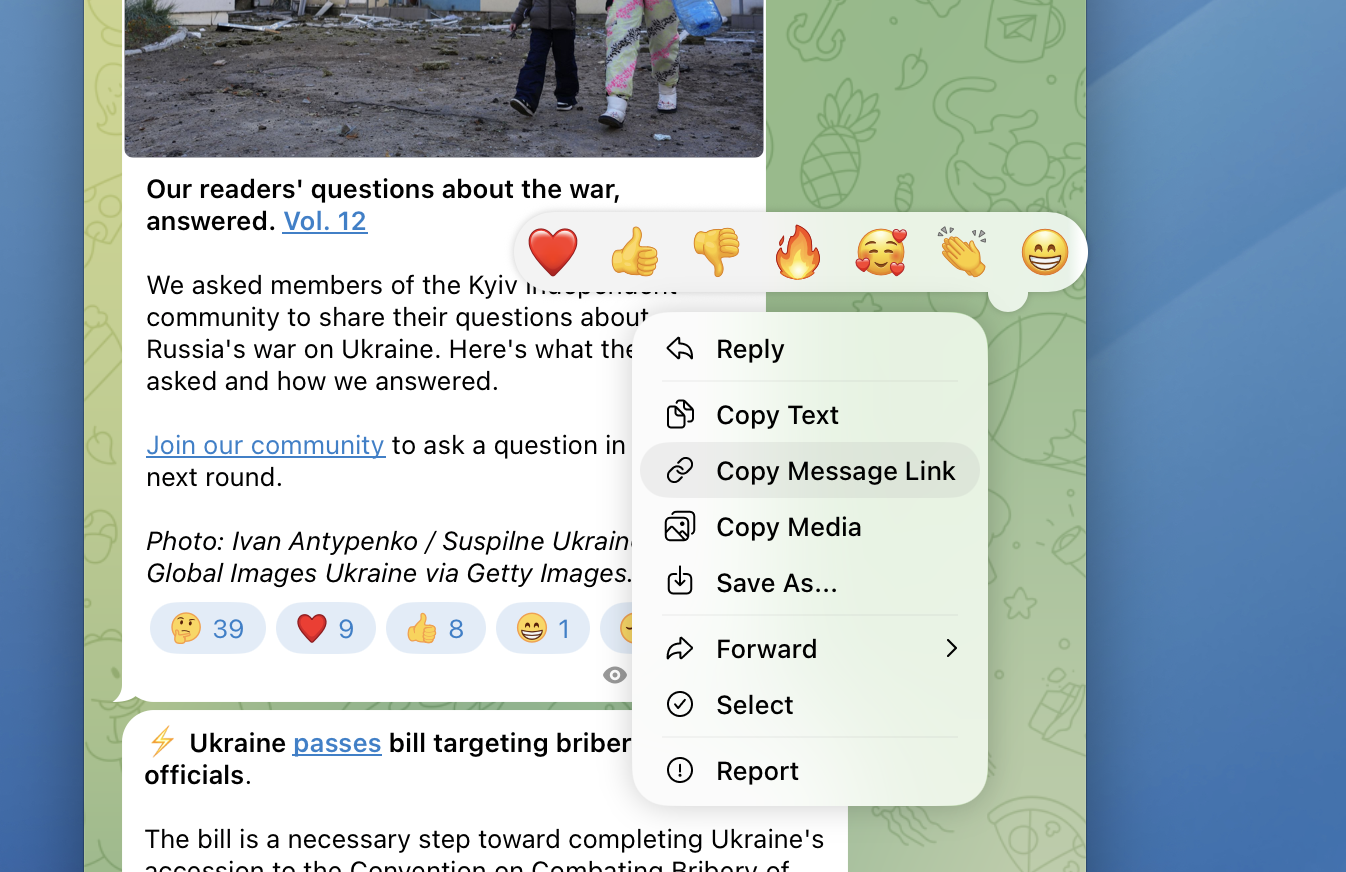
You get a permanent URL for that one post, in the form t.me/channelname/56797: the channel, then the message number. Yay for the web!
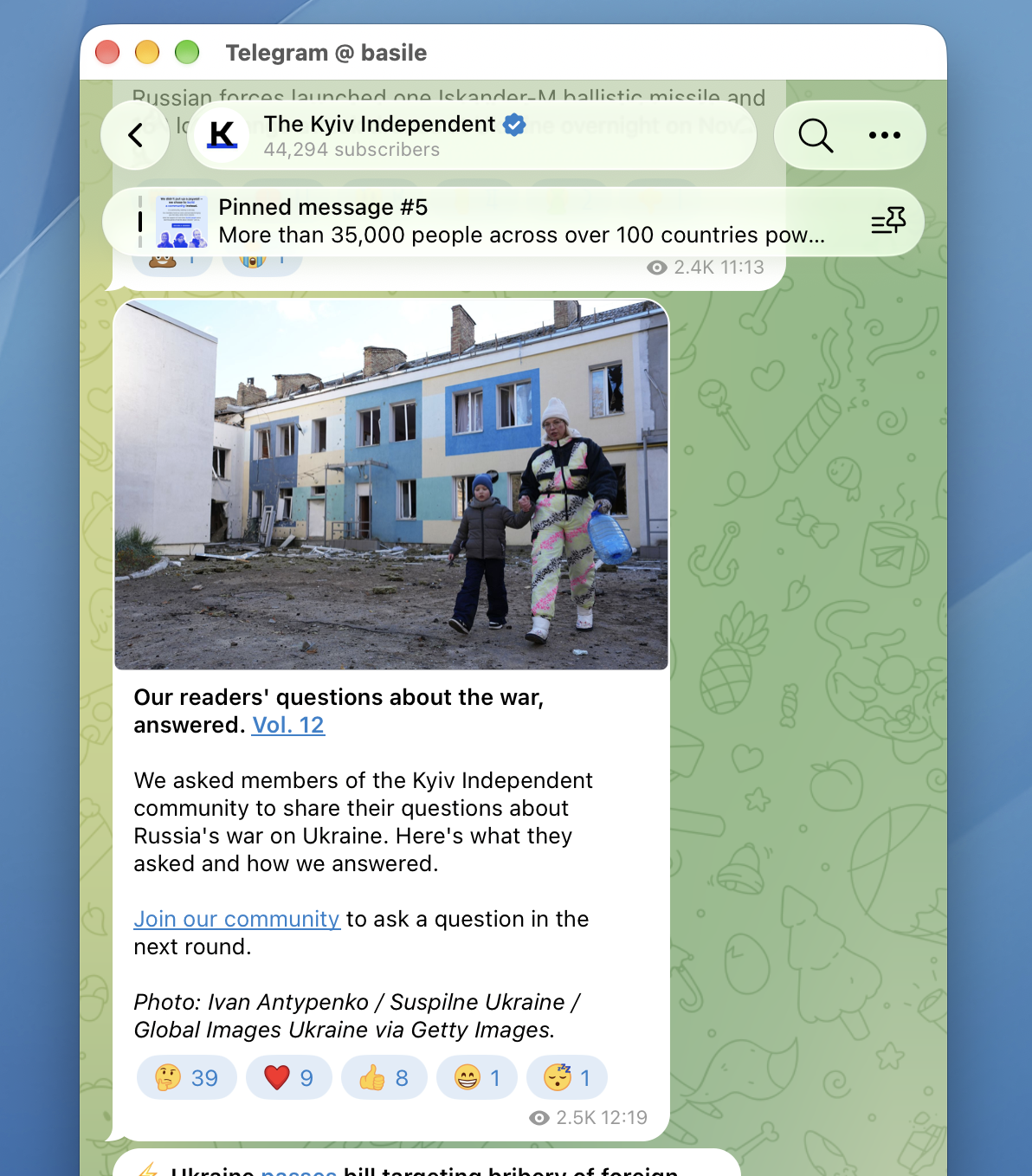
While you're here, take note of some data that shows in-app but not on web: the reactions, the view count, the subscriber count. If those numbers matter to your story, write them down in your notes now, with the time.
Step 2: Open the link in a fresh browser and capture it
Open a fresh, empty browser window through evidx: no logins, no tabs from this morning. It keeps your own session out of the capture and your own identity out of the target's logs.
Paste the link – you'll notice that Telegram serves public posts as a plain web page at that address, with the text, the media and a button to view the post in the channel.
Then click Capture Page in the evidx extension.
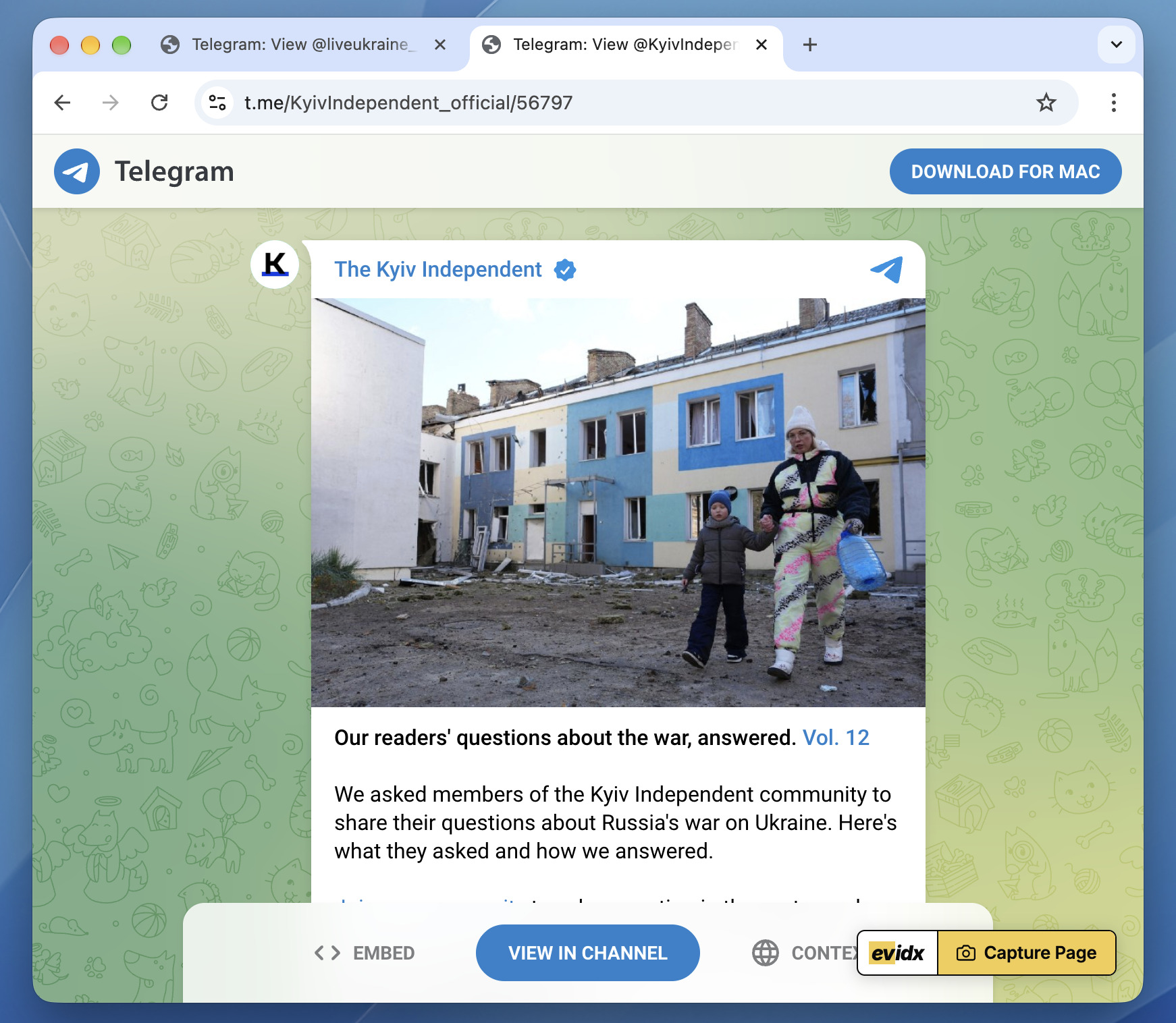

That's the whole of the capturing done!
Step 3: What you get back
The result of capturing a web page with evidx is a signed web archive – a representation of the page much richer than a screenshot. The code, the text, its images, the structure and the exchange with Telegram's server(s). The format is called WACZ, and I wrote about why it holds up where a screenshot doesn't.
The capture lands in your collection, with the capture time, the file size and Signed by your name attached.
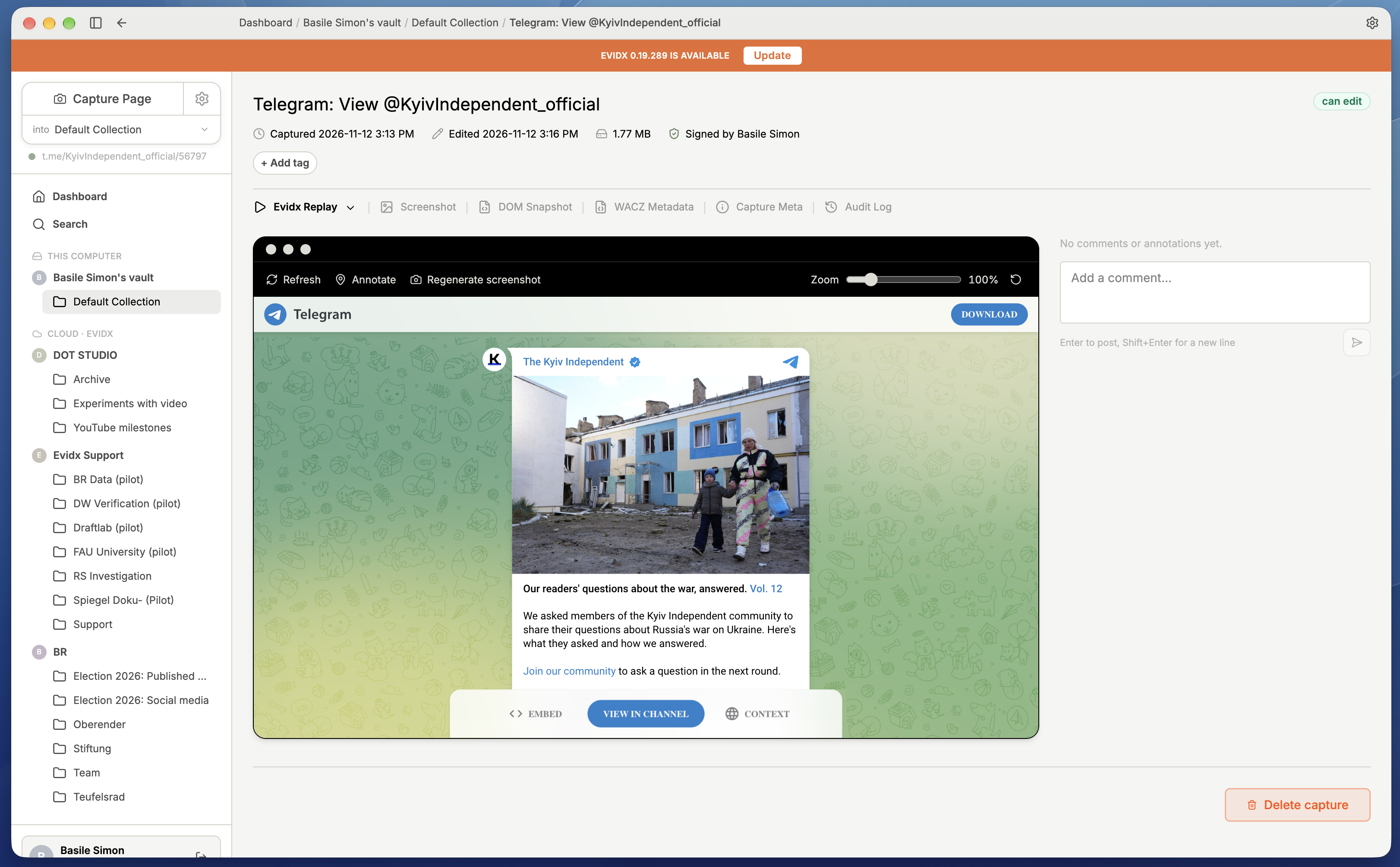
What you're looking at is a rich replay, interactive and offline. The archive is being played back. The tabs along the top open the other layers of the record: a screenshot, the DOM snapshot, the archive's metadata, the capture's own metadata, and the audit log, the signed ledger of everything that has happened to this capture since (why that matters).
Step 4: Organise your captures in a collection
Captures go into collections: one per investigation, per client, per channel... whatever floats your boat.
The collection view shows the post you've just archived alongside everything else you've gathered. All capture you have access to, across collections, are searchable by title, keyword and tag.
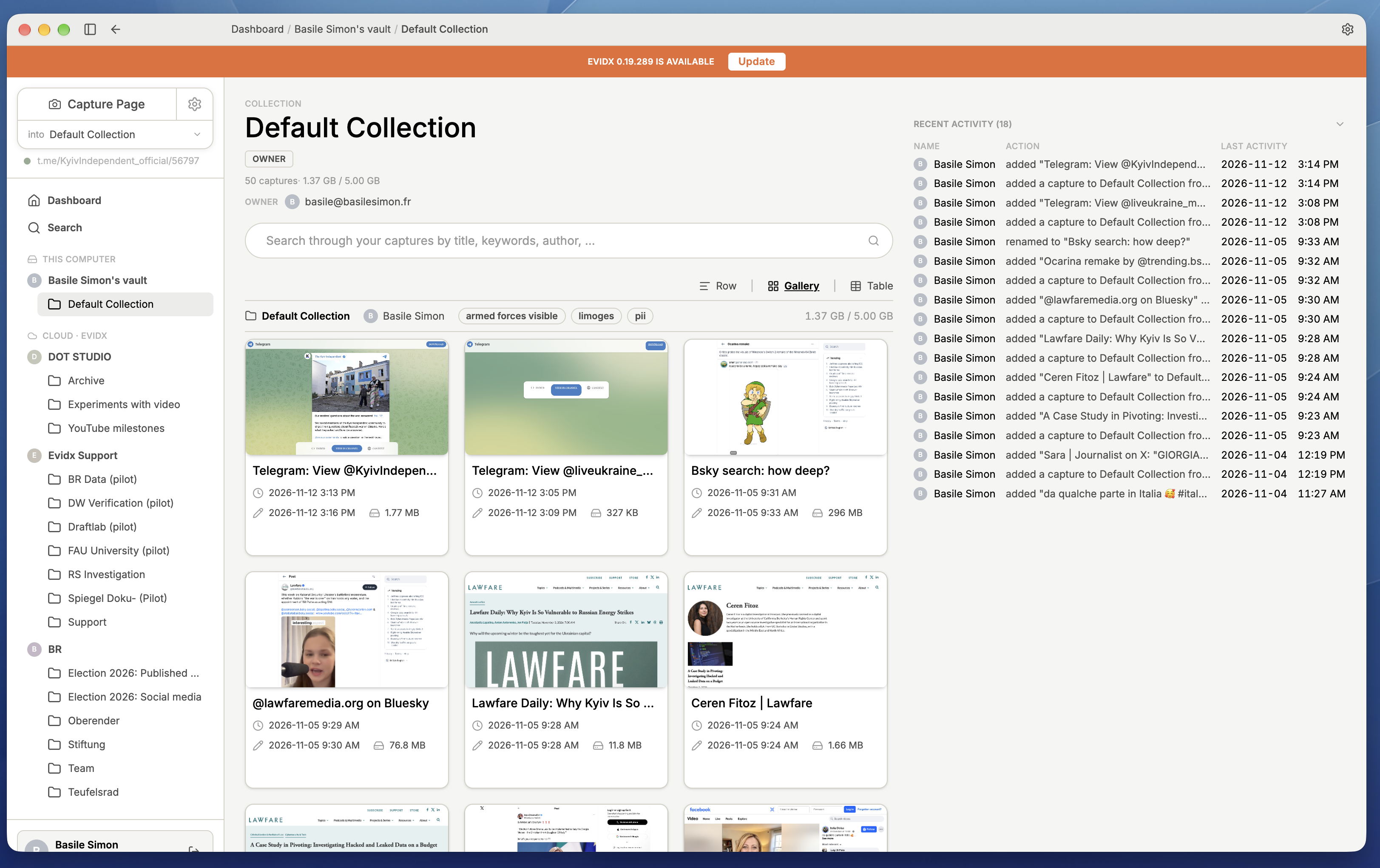
Note: If you're capturing a channel rather than a single post, repeat the steps for each message. Capture the posts around it too: a deletion later is far easier to prove when you have what came before and after. Our step-by-step guide shows how to tag, comment and annotate as you go.
Step 5: Share a capsule, if you need to
As a matter of hygiene and protecting your sources, in evidx captures stay on your machine by default.
If you need a colleague to access a capsule (for review, fact-checking, etc), you can publish that capsule, and evidx gives you a public link.
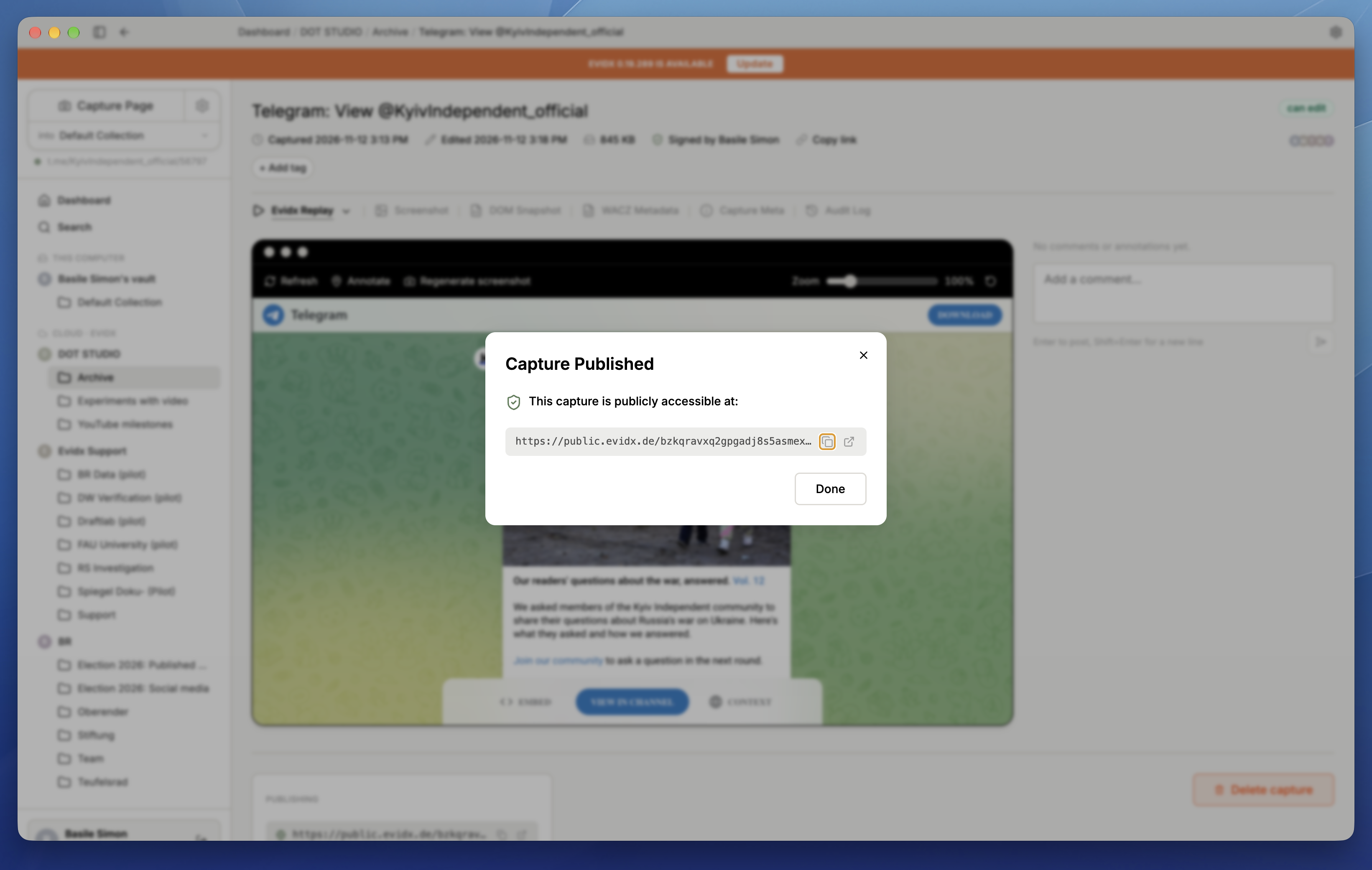
Anyone with that link can open the capture and inspect it – it goes without saying that you should treat with caution when dealing with sensitive material.
Known limits
- Private channels don't expose individual message URLs, and require you to be a member. We can't archive them this way.
- You can only capture what's still available. This method can't recover a post that was already deleted.
- A capture records what Telegram shows publicly, and presently that means that the app's own numbers, such as reactions and views, are not a part of it.
See it for yourself
This is the capture from the screenshots above, published as a capsule. Go ahead, open it, replay the post, and check the record: